
Desktop apps
ZCode
Add NoviaHub as a custom provider in Z.ai's ZCode desktop app.
ZCode is a desktop app from Z.ai, which calls it an “Agentic Development Environment (ADE)” designed for long-horizon tasks. It can add any model service compatible with the Anthropic / OpenAI protocols as a custom provider, which is how NoviaHub connects.
Prerequisites
Section titled “Prerequisites”- A NoviaHub account with an API key. See API keys.
- Funds in your account. See Wallet and top-ups.
Install ZCode
Section titled “Install ZCode”Download the package for your system from the official install page. ZCode supports macOS (Apple Silicon / Intel), Windows (x64 / ARM64) and Linux (x64, ARM64; AppImage, DEB or RPM).
- macOS: open the downloaded
ZCode.dmgand drag ZCode into the Applications folder. - Windows: run the downloaded installer and follow the wizard.
- Linux: make an AppImage executable first with
chmod +x ZCode-*.AppImage; install a.debor.rpmwith your distribution’s package manager.
Configure NoviaHub
Section titled “Configure NoviaHub”-
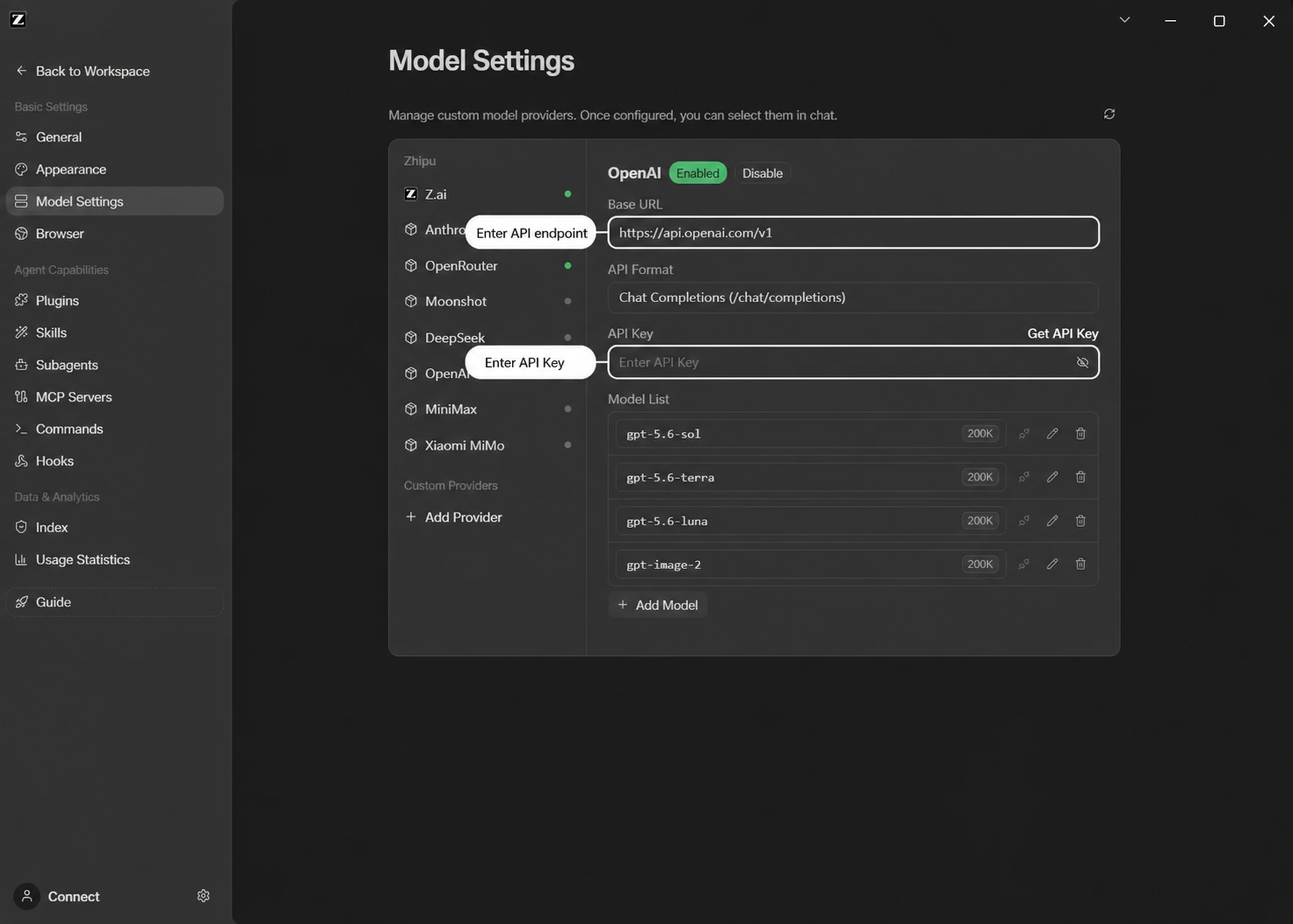
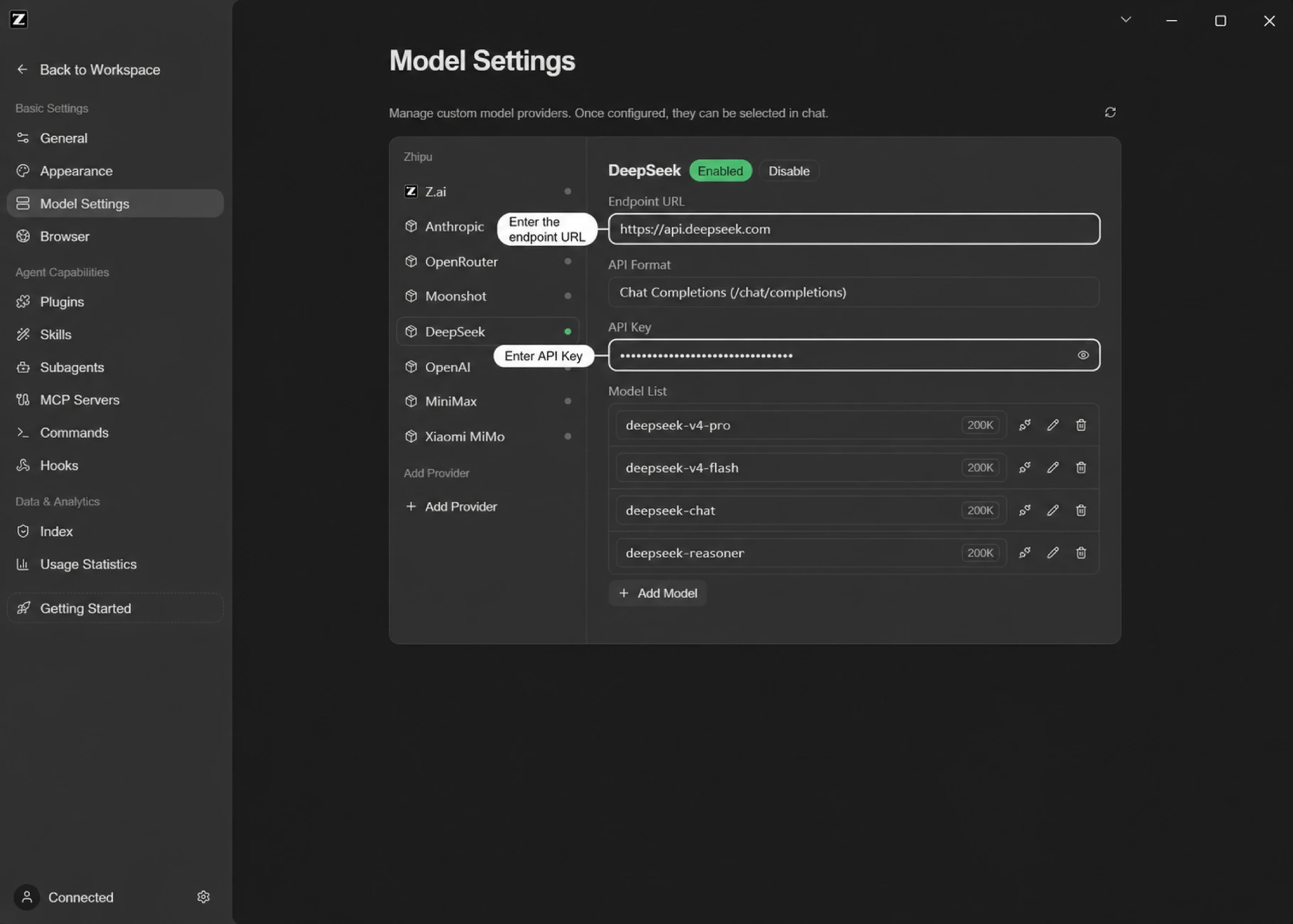
Open the Model Settings panel. In ZCode, click the model name in the chat box to open the model selector, then click Manage models at the bottom of the list. This opens the Settings → Model Settings panel.
-
Click Add provider at the bottom of the provider list on the left.
-
Fill in:
Field Value Name NoviaHub(any name you like)Base URL https://noviahub.com/v1API format Chat completions (/chat/completions)API key Your NoviaHub key (starts with sk-) -
Click Add model and enter the model ID you want to use, for example
deepseek-v4-flash. The model ID must match the one on NoviaHub exactly. You can add several. ZCode needs at least one model before it adds the provider (the app says “Add at least one model before adding the provider.”). -
Turn on the provider’s enable switch and it’s ready to use.
Calling Claude models over Anthropic Messages (optional)
Section titled “Calling Claude models over Anthropic Messages (optional)”The Chat completions format can call Claude models too, but the request goes through protocol conversion and some features are lost; see Protocol conversion. To send Claude models over Anthropic Messages, add a second provider:
| Field | Value |
|---|---|
| Name | NoviaHub Claude (any name you like) |
| Base URL | https://noviahub.com (no /v1; ZCode adds it) |
| API format | Anthropic messages (/v1/messages) |
| API key | The same NoviaHub key |
| Model | For example claude-sonnet-5 |
This only works for models whose details show the Anthropic endpoint label. Likewise, models with the Response label can use the Responses (/responses) format, again with the Base URL https://noviahub.com/v1.
Verify
Section titled “Verify”-
Pick a model under NoviaHub in the model selector in the chat box.
-
Send a short test instruction, such as “Introduce yourself in one sentence.” Once the model responds reliably, you’re set.
-
Check the call and its cost under Usage Logs in the NoviaHub console.
Switch and add models
Section titled “Switch and add models”- Switch models in the model selector in the chat box.
- To add more, go back to Settings → Model Settings and click Add model under the NoviaHub provider.
- For a provider in Chat completions format, pick models that carry the Chat label under Models & Pricing; every model on the site carried it on 2026-09-28. A provider in Anthropic messages format only takes models with the Anthropic label.
- The context window is editable. Under Settings → Model Providers, open a model and expand Advanced to change a custom-provider model’s context window; the new value applies to new sessions after saving. The same panel sets Max output tokens (the length limit for a single reply), which ZCode recommends leaving empty in almost all cases.
- No custom request parameters yet. You can’t add extra request parameters for third-party models.
- Image input. For a custom model, ZCode’s image-support check may come out as Unknown. Then it doesn’t block the image; the model service decides, and the request may fail. Confirm the model accepts images (see Input types on its page) before sending them.
- Proxy. By default ZCode does not read the system
HTTP_PROXY/HTTPS_PROXYvariables; the HTTP proxy set in Settings is what counts. Restart ZCode after changing the proxy.
References
Section titled “References”Checked on 2026-09-28 and 2026-09-29:
- About ZCode: https://docs.z.ai/devpack/tool/zcode
- Install: https://zcode.z.ai/en/docs/install
- Connect models (custom providers, verifying, advanced settings, proxy): https://zcode.z.ai/en/docs/configuration
- Connect models (Chinese): https://zcode.z.ai/cn/docs/configuration
- Official screenshot (OpenAI provider): https://zcode.z.ai/content/docs/v2/screenshots/apikey-openai-20260728-en.webp
- Official screenshot (custom provider): https://zcode.z.ai/content/docs/v2/screenshots/apikey-custom-deepseek-20260728-en.webp
- API format options, the path each format appends, interface labels: the code in the ZCode 3.14.3 package for macOS on Apple silicon (
app.asarandglm/zcode.cjs), downloaded on 2026-09-29 from the official install page