

Getting started
API keys
What an API key is, how to create one, what each option means, and how to view, disable, delete and protect your keys.
What an API key is
Section titled “What an API key is”An API key is a string that starts with sk-. Programs and tools send it with every request to NoviaHub, so NoviaHub knows who is calling and whose balance to charge.
- One account can have many keys. We recommend one key per app or tool, so if something goes wrong you only need to stop that one.
- Each key can have its own expiry time, spending limit, allowed models and allowed IP addresses.
- Calls are charged to your account balance, whichever key you use.
Open the API Keys page
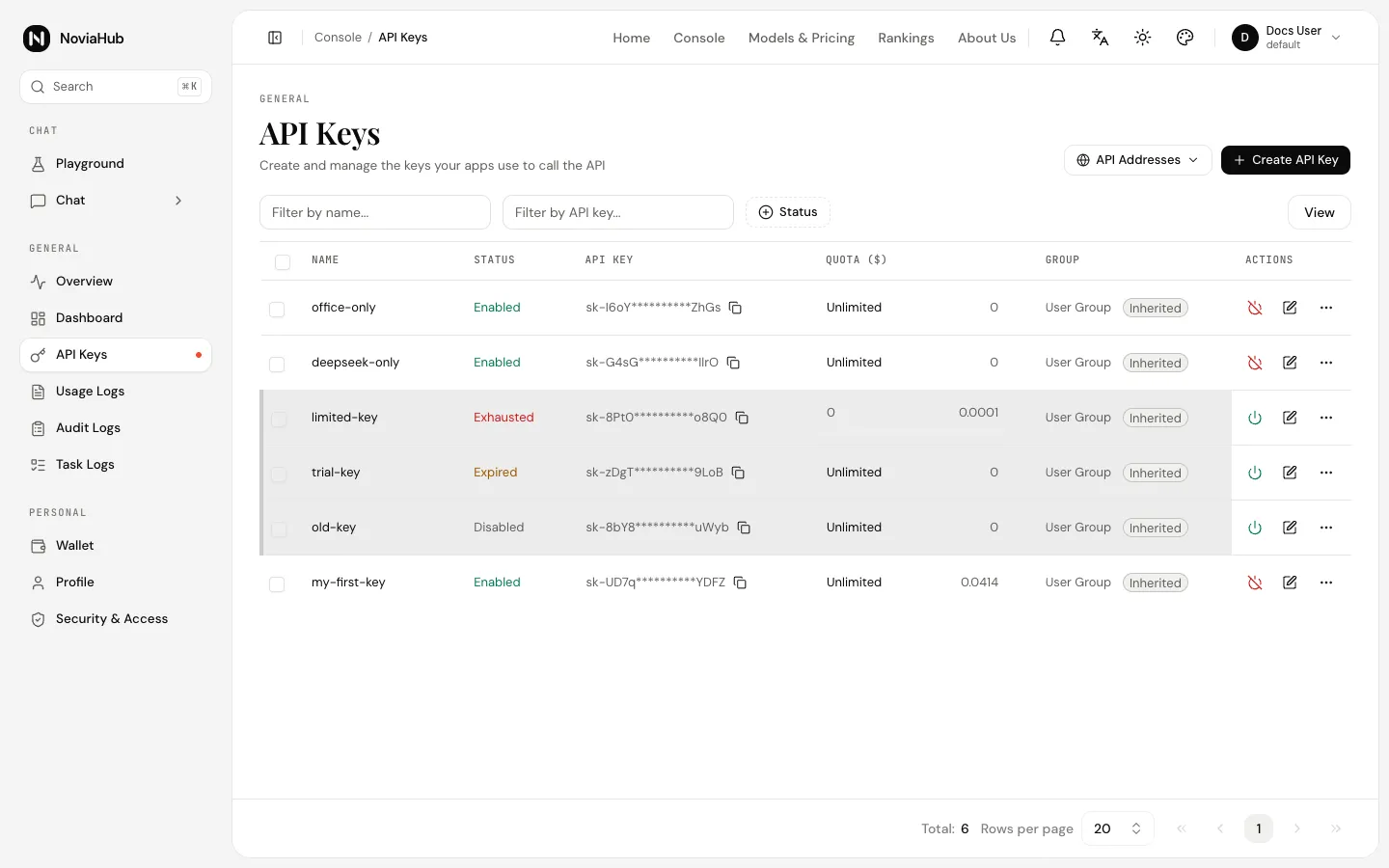
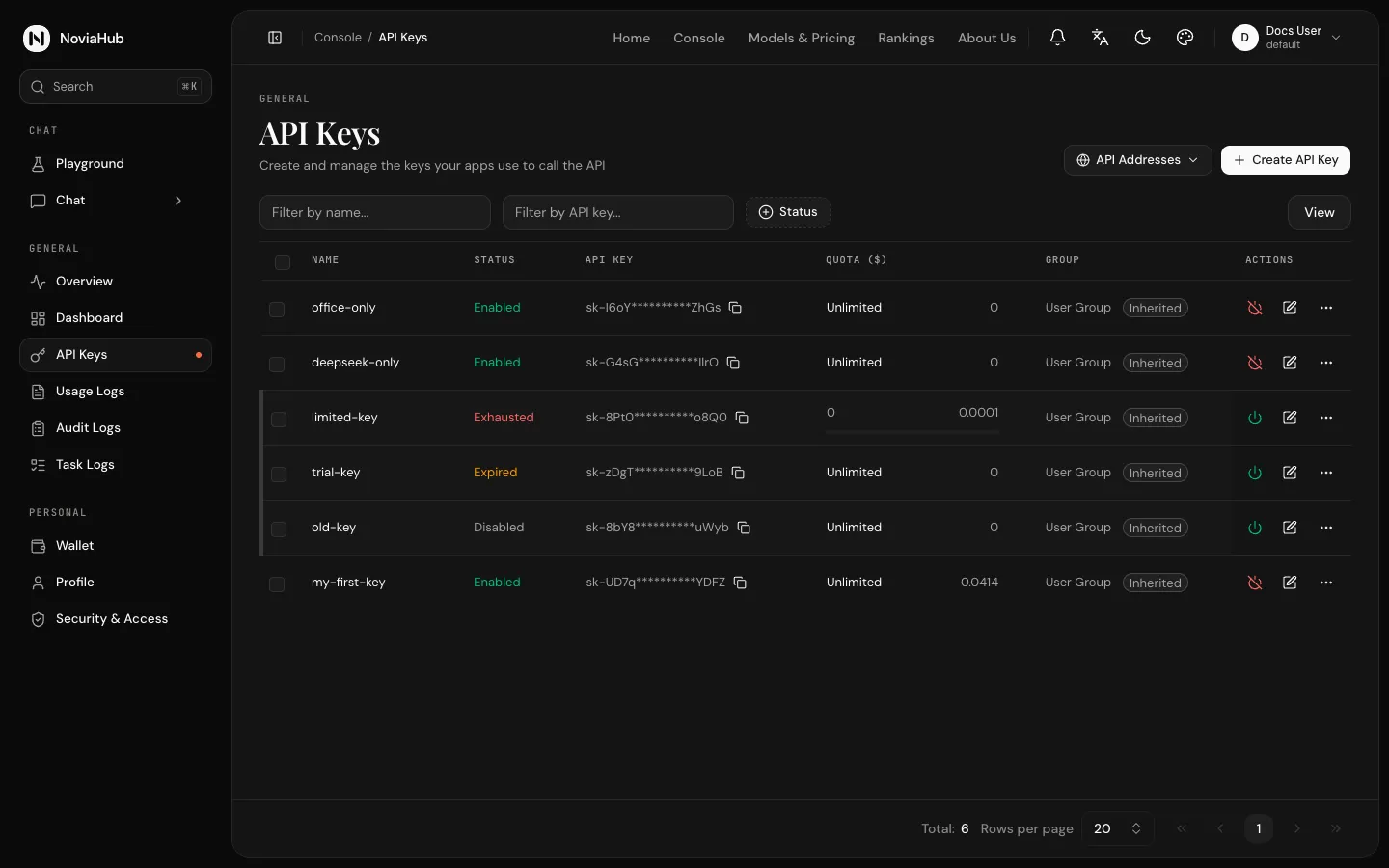
Section titled “Open the API Keys page”After signing in, open the console and click API Keys under General in the sidebar, or go straight to noviahub.com/keys.
Create an API key
Section titled “Create an API key”-
Click Create API Key in the top-right. A panel opens on the right.
-
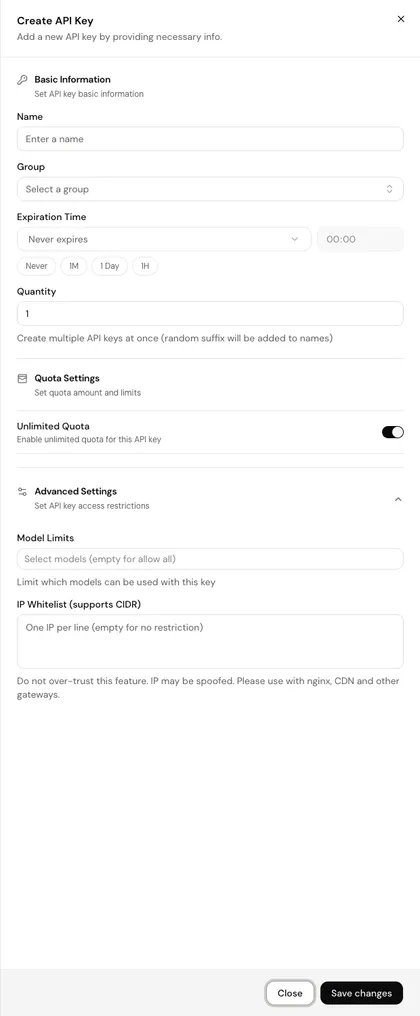
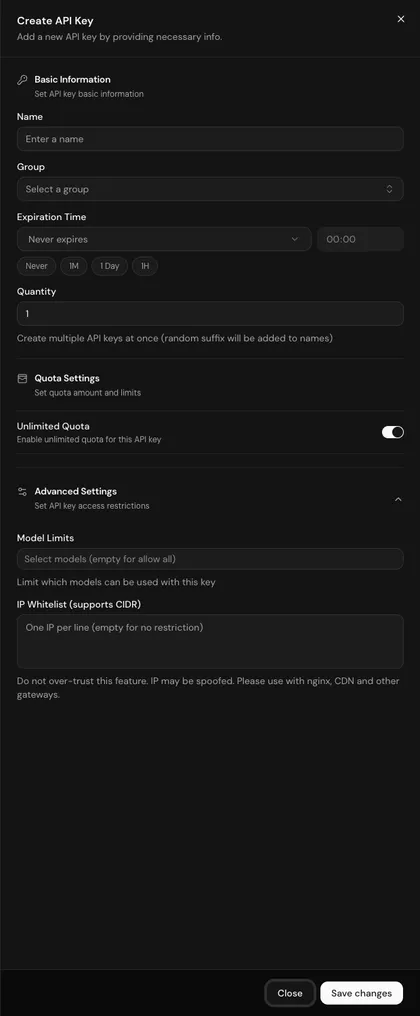
Fill in the fields you need (most of the time only Name; leave the rest at their defaults):
Basic Information
Field Meaning Name Required, up to 50 characters. A label for yourself; naming it after its use helps, such as claude-codeormy-app.Group Decides which group of routes and prices the key uses. If left empty, the key follows your account’s group (shown as User Group with an Inherited tag in the table). NoviaHub currently has a single group, the default group, so keep the default. Expiration Time Never expires by default. The quick buttons set Never, 1M (one month), 1 Day or 1H (one hour), or pick a date and time yourself. An expired key stops working. Quantity 1 by default. A number above 1 creates several keys at once, with a random suffix added to each name. Quota Settings
Field Meaning Unlimited Quota On by default: the key itself has no spending limit. It does not mean free; calls are still charged to your balance and stop when the balance runs out. Quota Appears when Unlimited Quota is off. The most this key may spend, in the currency shown in the interface (usually US dollars, $). Once spent, the key’s status becomes Exhausted. Useful for test environments or keys you give to someone else.Advanced Settings (click to expand)
Field Meaning Model Limits Only the selected models can be called with this key; empty means all models. Calling any other model returns a 403 error. IP Whitelist (supports CIDR) Only these IP addresses may use the key; empty means no restriction. Put one IP or range per line (such as 203.0.113.8or203.0.113.0/24); do not separate several addresses with commas on one line. The panel warns “Do not over-trust this feature. IP may be spoofed”, so treat it as an extra safeguard only. -
Click Save changes in the bottom-right. The new key appears in the list.
View and copy the full key
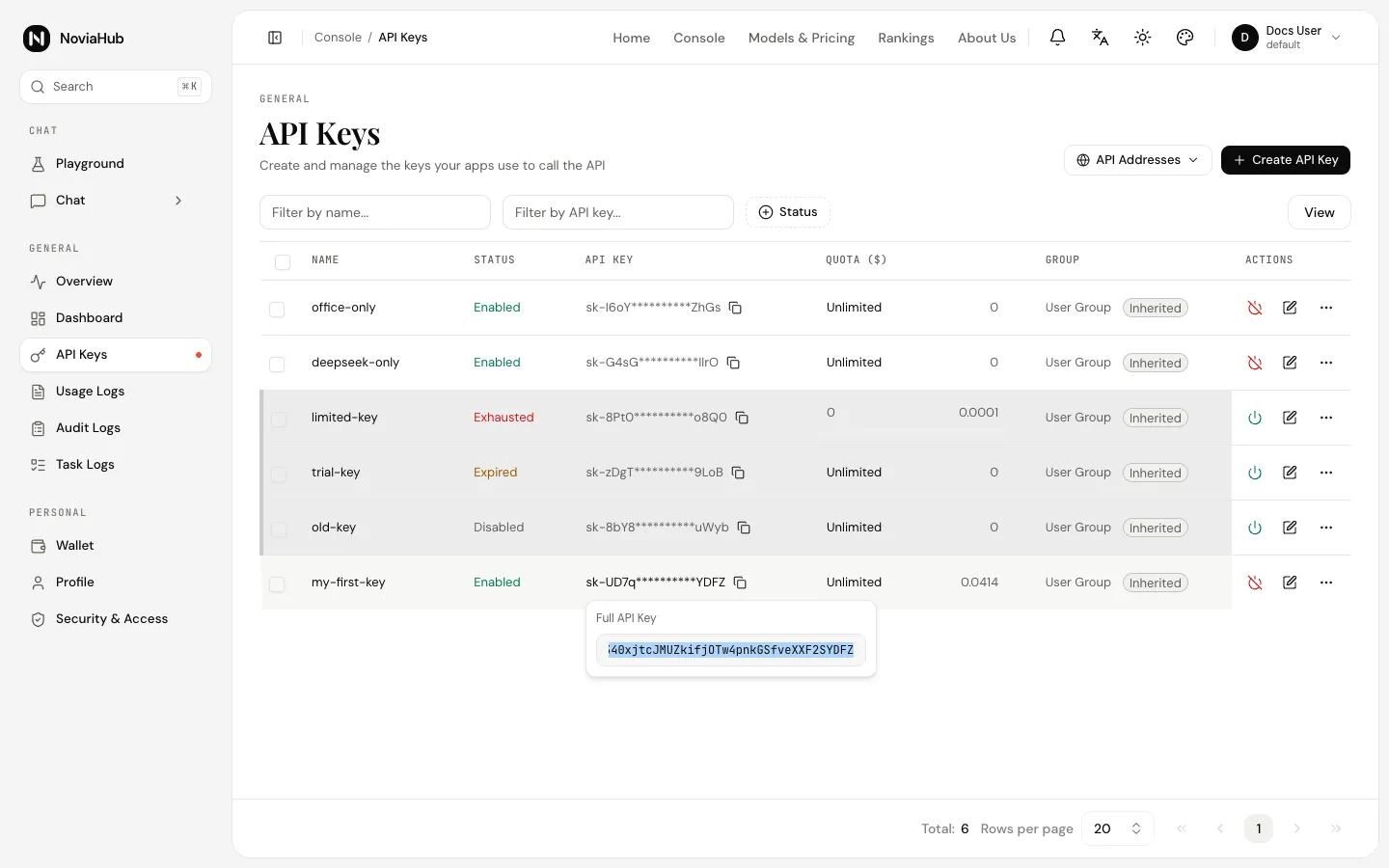
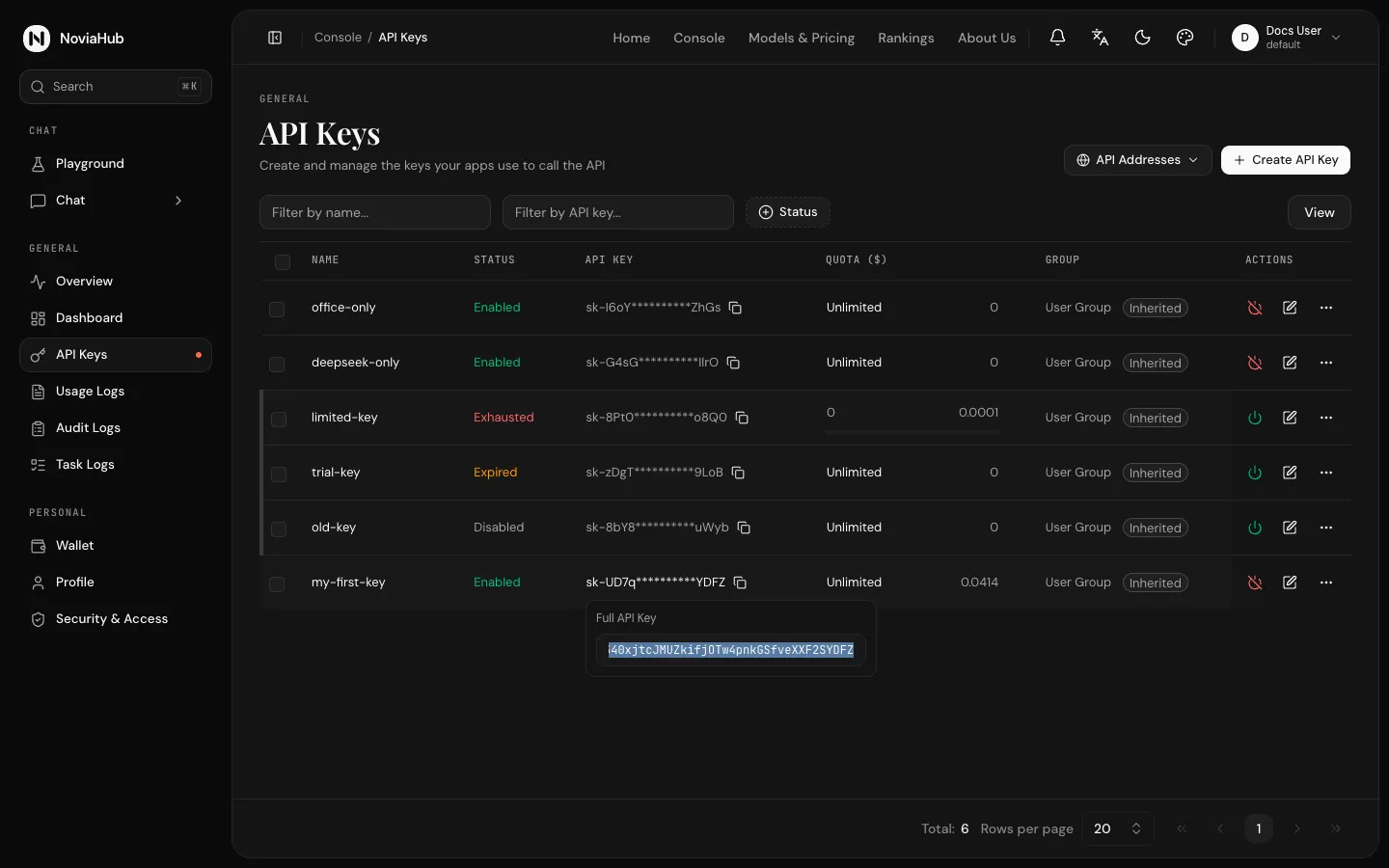
Section titled “View and copy the full key”The list shows only the start and end of each key (such as sk-UD7q**********YDFZ). To get the full key, use any of these:
- Click the masked key. A small Full API Key window opens with the text already selected; copy it.
- Click the copy icon next to the key.
- Click ⋯ at the right end of the row and choose Copy Key.
All three give you the full key, starting with sk-.
Reading the key list
Section titled “Reading the key list”| Column | Meaning |
|---|---|
| Name | The name you gave the key. |
| Status | See the statuses below. |
| API Key | The key with its middle masked; click it to see the full key. |
| Quota ($) | Unlimited for keys with unlimited quota; otherwise the remaining quota. Click it to see Remaining, Used, Current total quota and Remaining percentage. Current total quota = used + remaining. |
| Group | The group the key uses. |
| Models | “N models” when model limits are set, otherwise No restriction. |
| IP Restriction | “N IP(s)” when an IP whitelist is set, otherwise No restriction. |
| Time | When the key was created and last used. |
| Expires | The expiry time, or Never. |
| Actions | Enable/Disable, Edit and the ⋯ menu. |
When the table is wide, scroll sideways to see the columns on the right.
The four statuses
Section titled “The four statuses”| Status | When it happens | Can it be used? |
|---|---|---|
| Enabled | Normal state. | Yes. |
| Disabled | You clicked Disable. | No. Click Enable to restore it. |
| Expired | Its expiration time has passed. | No. Edit the key and move the expiration time into the future, or set it to never expire. |
| Exhausted | It has a quota limit and has spent it. | No. Edit the key and raise the quota, or turn on Unlimited Quota. |
Calling the API with a key whose status is not Enabled always returns HTTP 401 with the message Invalid token, without saying which of these reasons applies. When you get a 401, check the key’s status on this page first.
Disable, edit and delete
Section titled “Disable, edit and delete”Each row ends with three buttons:
- Disable / Enable: stop a key temporarily, or turn it back on. While disabled, calls with it return 401.
- Edit: change the name, group, expiration time, quota, model limits and IP whitelist, then click Save changes.
- ⋯ (Open menu): holds Copy Key, Copy Connection Info, CC Switch, Chat and Delete.
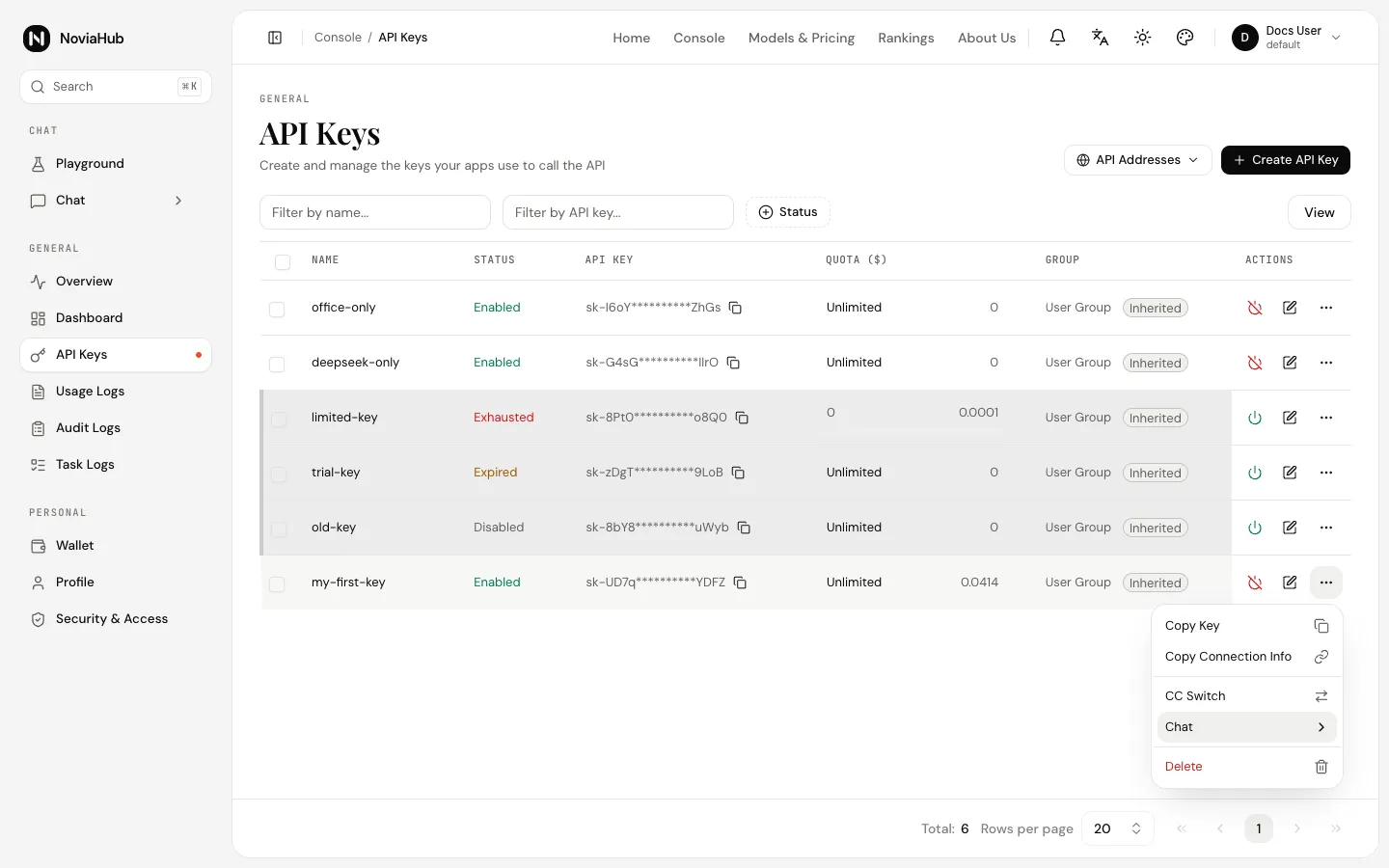
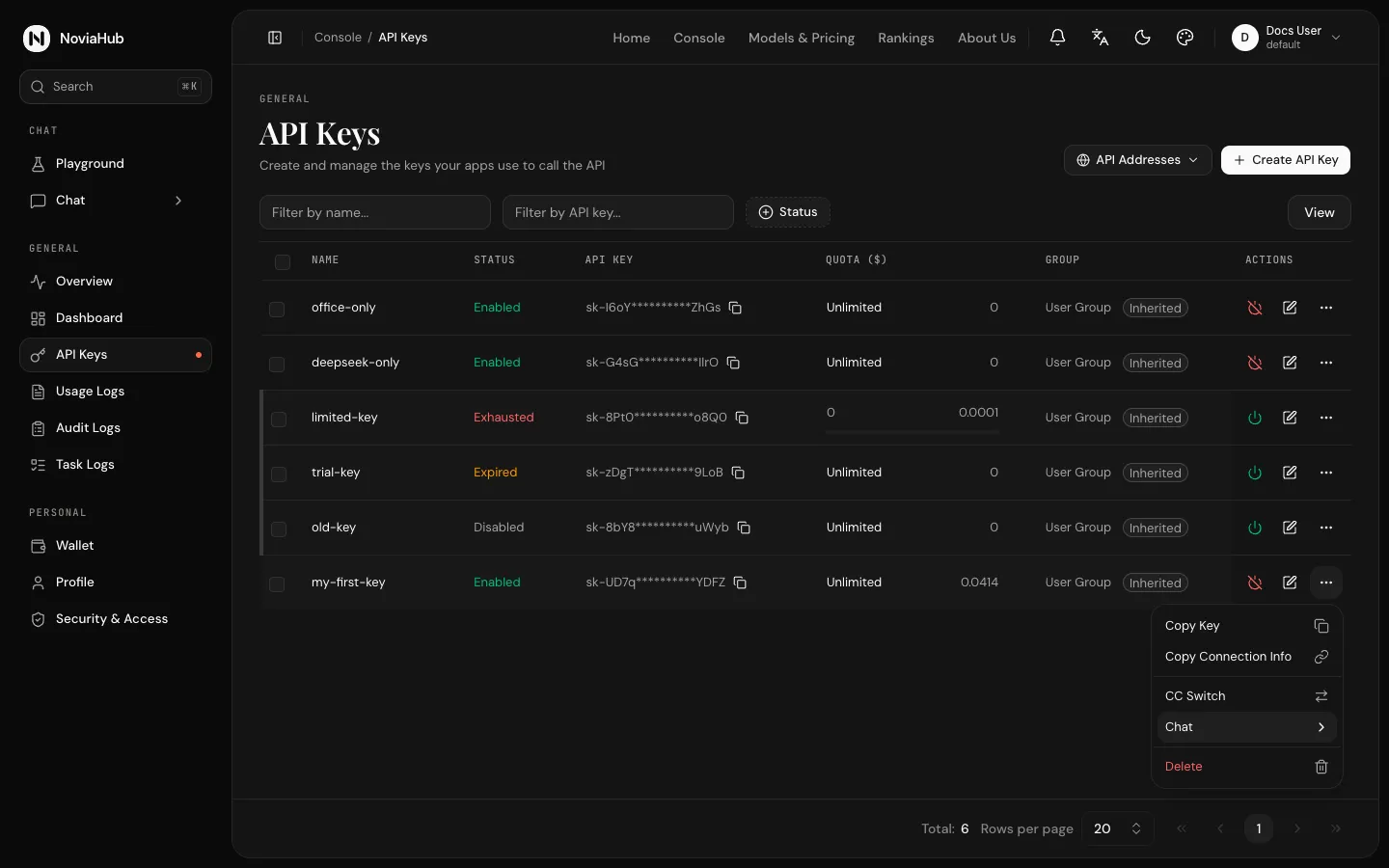
What each menu item does:
| Menu item | What it does |
|---|---|
| Copy Key | Copies the full key. |
| Copy Connection Info | Copies a JSON text containing the key and NoviaHub’s address, in the form {"_type": ..., "key": "sk-...", "url": "https://noviahub.com"}. It lets another gateway of the same kind fill in a channel automatically; you normally won’t need it. |
| CC Switch | Imports this key into CC Switch in one click; see CC Switch. |
| Chat | Fills this key into a third-party chat app (such as Cherry Studio) in one click. The app must already be installed. |
| Delete | Deletes the key permanently after a confirmation. This cannot be undone, and any program configured with the key stops working immediately. |
Tick the checkboxes on the left to select several keys, then use Copy selected keys or Delete selected API keys.
The API Addresses button
Section titled “The API Addresses button”The API Addresses button to the left of Create API Key lists the address to call (Default API address, https://noviahub.com) with a copy button. Each protocol uses the address a little differently; see Quickstart · Addresses.
Good practice
Section titled “Good practice”- One key per use: for example one for Claude Code and one for your own app. If one leaks or its usage looks wrong, disable just that one.
- Cap keys you don’t fully trust: for keys lent to someone or used in a test environment, turn off Unlimited Quota, set a quota, and add an expiry time if needed.
- Allow only the models you need: for a key used by a single tool, use Model Limits to allow only the models it needs, so an expensive model isn’t used by mistake.
- Check regularly: in Usage logs, filter by Token Name to see each key’s calls and spending.