

Getting started
Wallet and top-ups
Where to see your balance, how to top up online and redeem codes, the referral program, and what happens when your balance runs out.
NoviaHub is prepaid: you add money to your account first, and each call to a model is charged to that balance according to actual usage. All your API keys share the same balance.
Open the wallet
Section titled “Open the wallet”After signing in, click Wallet under Personal in the console sidebar, or open noviahub.com/wallet.
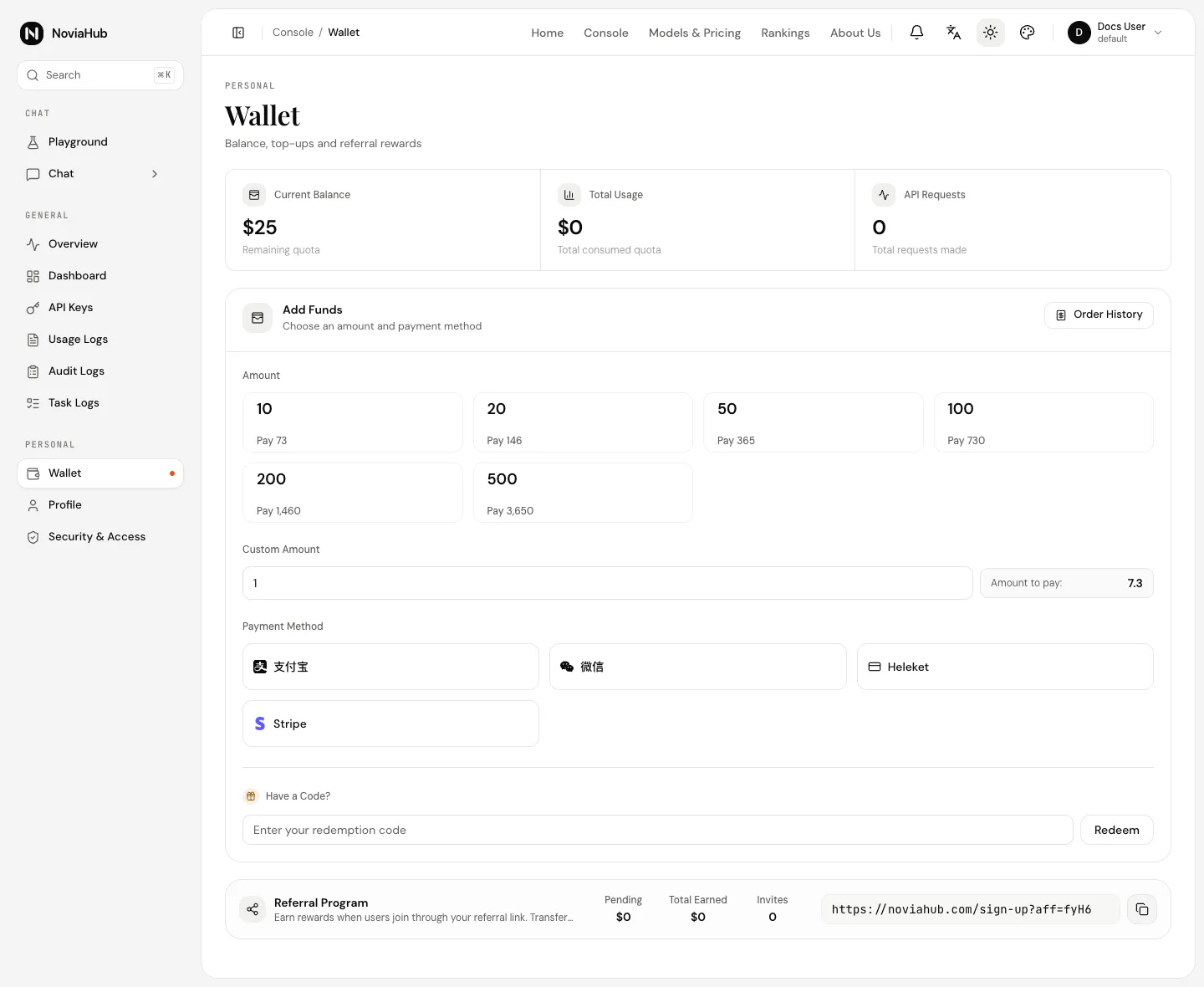
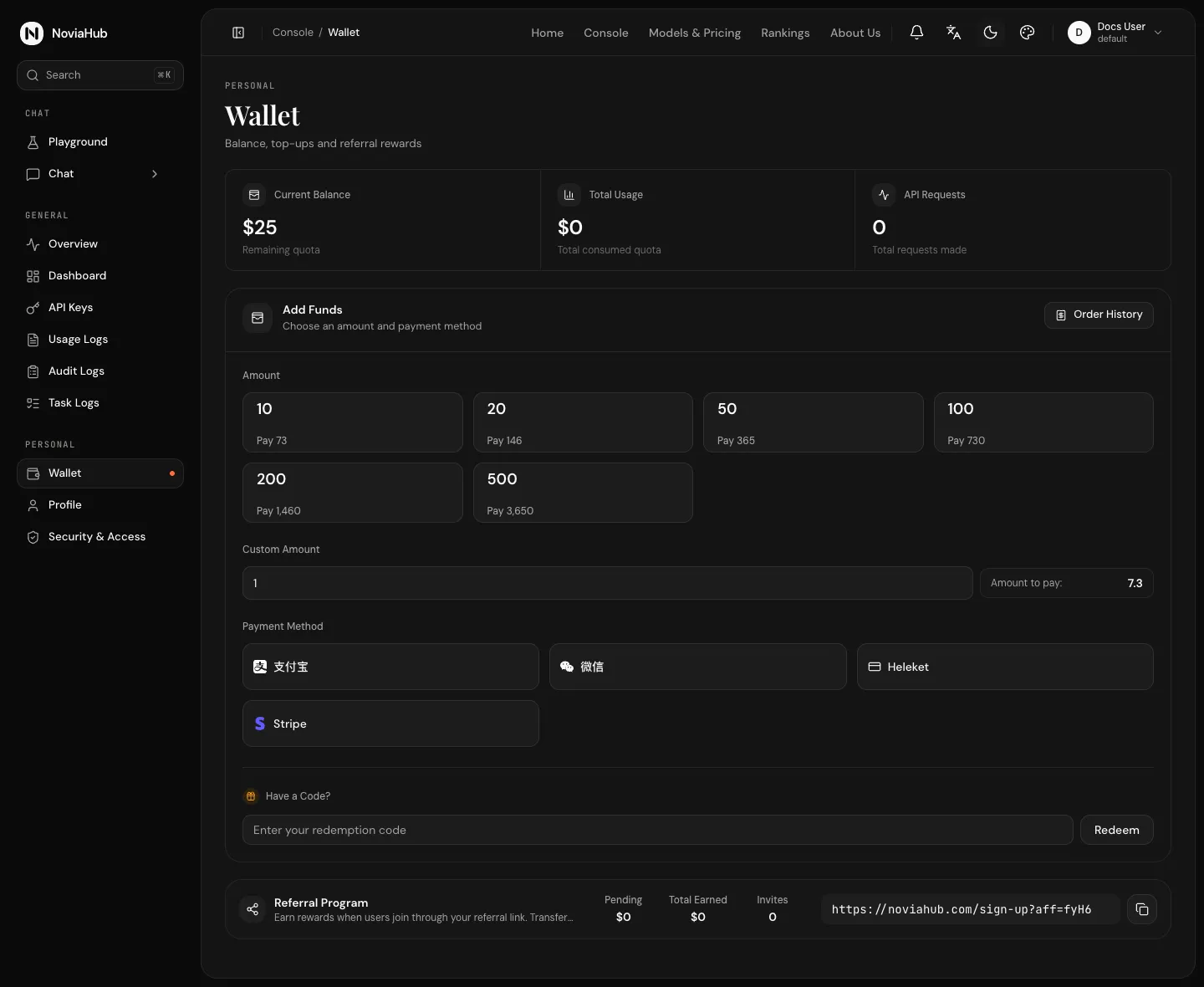
The three cards at the top:
| Card | Meaning |
|---|---|
| Current Balance | How much money is left to spend. |
| Total Usage | How much you have spent so far. |
| API Requests | How many requests you have sent so far. |
Amounts are shown in the currency the site is set to; NoviaHub currently shows US dollars ($). Model prices and charges use the same unit.
Top up
Section titled “Top up”NoviaHub accepts online top-ups. You can currently pay with Stripe, Alipay, WeChat Pay or Heleket (cryptocurrency).
-
On the Add Funds card, pick an amount under Amount, or enter your own under Custom Amount.
-
Click a payment method under Payment Method. If the amount is below that method’s minimum, the button shows Minimum: and the minimum and can’t be clicked; hovering over it shows Minimum topup amount: and the amount.
-
In the Confirm Payment window, check Topup Amount, You Pay and Payment Method, then click Confirm Payment. You Pay is the amount you will actually be charged.
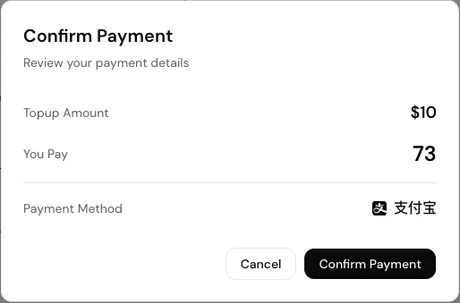
The screenshot comes from a test environment; its amounts are only examples.
-
The payment page opens in a new browser tab. Follow its instructions to pay. Once the payment succeeds, the top-up amount is added to your balance automatically.
Order History in the top-right of the Add Funds card lists every top-up order.
Redeem a code
Section titled “Redeem a code”A redemption code is a string that adds its amount straight to your balance.
- On the wallet page, find Have a Code?.
- Paste the code into Enter your redemption code.
- Click Redeem. On success, a message confirms the redemption and the amount added.
Each code can be used once, and some also expire.
When redemption fails, the page always says Redemption failed, please try again later, without the reason. The usual causes are: the code was mistyped (an extra space or a missing character), it has already been redeemed (by anyone), or it has expired. Check the code carefully first; if it is correct and still fails, contact whoever gave you the code.
Referral program
Section titled “Referral program”The Referral Program card at the bottom of the wallet page:
- Click Copy referral link to get your personal link. When someone signs up through that link, you earn a reward.
- Pending, Total Earned and Invites show rewards not yet moved to your balance, all rewards earned, and the number of people invited.
- Transfer to Balance moves your rewards into your balance so you can spend them on models.
The reward amount is set by the site. Rewards are only earned when the other person completes sign-up through your link; while the site is not accepting sign-ups (see Signing in and your account), a referral link cannot bring in new users.
When your balance runs out
Section titled “When your balance runs out”With too little balance, API calls are refused with HTTP 403 and the error code insufficient_user_quota, for example:
{ "error": { "message": "用户额度不足, 剩余额度: $0.000000 (request id: ...)", "type": "new_api_error", "param": "", "code": "insufficient_user_quota" }}(The message text is in Chinese: “insufficient user quota, remaining quota: $0.000000”.) Calls work again as soon as you top up; you don’t need new API keys. See Error codes and troubleshooting for other errors.