
Getting started
Signing in and your account
How to sign in to NoviaHub, what to do if you forget your password, and where the account security settings are.
Sign in
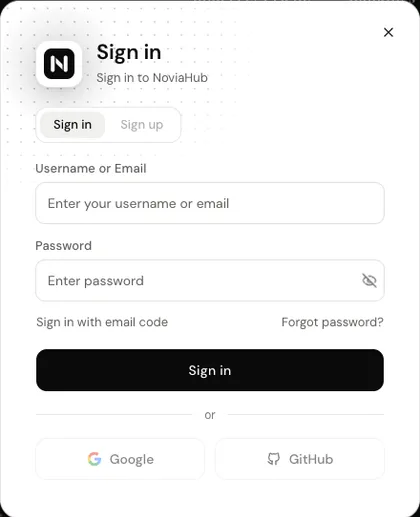
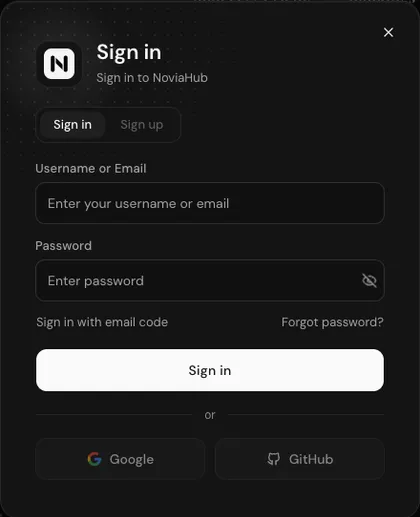
Section titled “Sign in”Open noviahub.com and click Sign in in the top-right corner. The sign-in dialog offers two ways to sign in:
With your password
Section titled “With your password”Enter your username or email under Username or Email, your password under Password, and click Sign in.
With an email code
Section titled “With an email code”Useful when you forgot your password or don’t want to type it:
- Click Sign in with email code in the dialog.
- Enter the email address of your account and click Get code.
- Find the 6-digit code in your inbox, enter it under Verification code, and click Sign in.
Limits on codes (enforced by the site):
- Each code is valid for 10 minutes.
- After sending a code you must wait 60 seconds before sending another; the button shows Resend in Ns.
- A code accepts at most 5 wrong attempts; after that, request a new one.
- One account can receive at most 5 codes an hour and make at most 10 wrong attempts a day. Sign-in and password reset share these limits.
If a code doesn’t arrive, check your spam folder. If you have just requested several codes in a row, you may have hit the limit of 5 an hour; try again later.
Google and GitHub
Section titled “Google and GitHub”The Google and GitHub buttons at the bottom of the dialog are currently greyed out. Hovering over them shows Google sign-in is not set up (the same for GitHub): NoviaHub does not offer these sign-in methods yet.
Signing up
Section titled “Signing up”The dialog has two tabs at the top, Sign in and Sign up. If Sign up is greyed out and hovering over it shows Registration is closed, the site is not accepting self-service sign-ups. As of 2026-09-28, this is the case on NoviaHub. If you need an account, email support@noviahub.com.
Forgot your password
Section titled “Forgot your password”- Click Forgot password? in the dialog to open Reset password.
- Enter your username or email and request a code. The code goes to the account’s email address.
- Enter the code, choose a New password (8–128 characters) and type it again under Confirm new password.
- When you see Password reset. Sign in with your new password., sign in with the new password.
Password-reset codes follow the same limits as email-code sign-in (see above).
Account security settings
Section titled “Account security settings”After signing in, open Security & Access under Personal in the console sidebar. There you can:
- Two-Factor Authentication: add an extra layer of security; after your password, sign-in asks for the 6-digit code from your authenticator app.
- Review sign-in sessions: see which devices are signed in, sign out one session, or sign out all other sessions at once. If you suspect someone else is signed in to your account, sign out the other sessions first, then change your password.
- Access Token: a token for calling NoviaHub’s management API. It is not an API key; to call models, use an
sk-key created on the API Keys page. - Record IP Address: when on, usage and error logs record the IP address each request came from.
- Delete Account: permanently deletes the account and all its data. Make sure your balance and data are taken care of first.
The Profile page under Personal shows your account details.
Next steps
Section titled “Next steps”Once signed in, create an API key, then send your first request with the Quickstart.